Posts

Setting Up The Sublime Text Editor for Python

Image
Setting Up Sublime Text Editor for Python Install the Sublime Text 3 Go to View > Show Console Click on Ctrl+Shift+P and type INSTALL You can now install packages like gitsavy etc. Useful packages: Python Checker, Python Completions, Python Debugger or Xdebug, Python Improved, BracketHighlighter,SideBarEnhancements, Anaconda (this is not the same as the anaconda python distro, rather it is a Python IDE for Sublime ) Yor Sublime is now a Python IDE. You should be able to get bracket tracking, syntax checks, and debugging capabilities with XDebug.
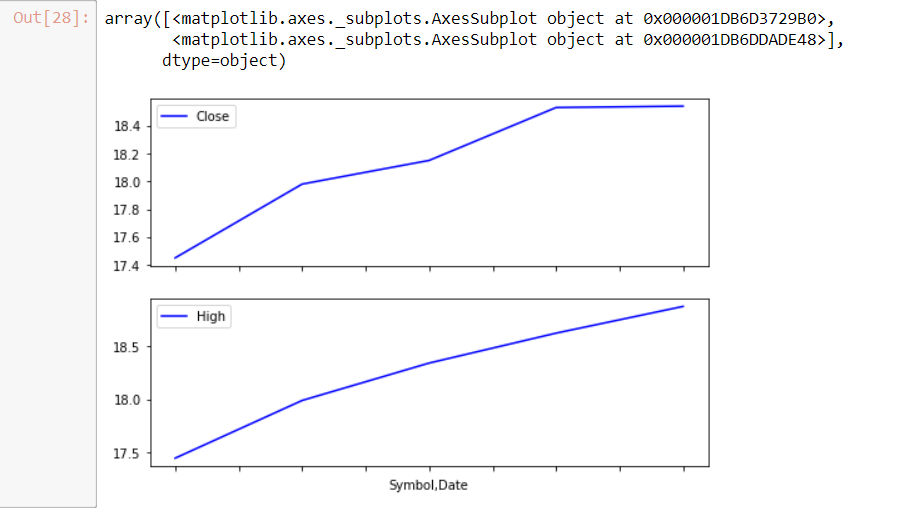
Python 3.6 - Matplotlib - simple PLOT

Image
This is a simple example of python plot. You can install all the imported modules by using: pip install numpy, pip install padas etc. import matplotlib as matplotlib from IPython import get_ipython get_ipython().run_line_magic( 'matplotlib' , 'inline' ) import numpy as np import pandas as pd import matplotlib import pandas_datareader as web import matplotlib.pyplot as plt start = '1/1/2018' end  = '1/5/2018' ge = web.DataReader( 'GE' , data_source = 'morningstar' , start =start  , end =end) ge %matplotlib inline ge[[ 'Close' , 'High' ]].plot( subplots = True , color = 'blue' , figsize =( 8 , 6 ))

PYTHON 3.6.5 INSTALLATION

Image
PYTHON 3.6.5 INSTALLATION Download Python 3.6.5 Install (run as administrator) Python 3.6.5 installs in C:\Users\pkirklewski\AppData\Local\Programs\Python\Python36-32 If Python is correctly installed you should be able to use the python launcher (just type python in the start menu and launch the application) Python launcher should give you the python command line environment Hit Windows + R and type sysdm.cpl then hit Enter Go to Advanced tab and Environment Variables Under System variables hit New and type Variable Name: PYTHON_HOME Variable value: C:\Users\pkirklewski\AppData\Local\Programs\Python\Python36-32 Where variable value is the installation directory of python You also need to modify the Path variable in System variables Edit Text and add the installation location of python Hi OK and Apply and open a new CMD window Type python -V

Install Azure Logic Apps tools in Visual Studio 2017

Image
Install Azure Logic Apps tools in Visual Studio 2017 Install Azure Logic Apps Tools for Visual Studio (Tools > Extensions and Updates) Please make sure You selected Visual Studio Marketplace in the left pane Hit Download Restart Visual Studio VSIX Installer will show up - click Modify You will now be able to create Logic Apps projects in Visual Studio Name the project AzureLogicAppsResourceGroup and click OK You will get a number of templates. Among them the Logic App template
Image
C# ASMX - How to read a Username and Password from Web.config In your Web.config - add the <appSettings>  section In your code, add the following string FaxCoreUsername = System.Configuration.ConfigurationManager.AppSettings[ "FaxCoreUsername" ]; string FaxCorePassword = System.Configuration.ConfigurationManager.AppSettings[ "FaxCorePassword" ]; You can now use the FaxCoreUsername and FaxCorePassword to authenticate long userID = faxSender.AuthenticateUser(FaxCoreUsername, FaxCorePassword);

SQL Server Error “A Network Related or instance-specific Error: 40”

Image
SQL Server Error “A Network Related or instance-specific Error: 40” Problem description When trying to make a connection from Visual Studio Entity Framework Connection Wizard to the local instance of the SQL Server - You get The Error: 40 Make sure that the SQL Server is configured to Allow remote connections (go to SQL Server Management Studio > Properties > Connections) Make sure that the firewall is opened:   netsh firewall set portopening protocol = TCP port = 1433 name = SQLPort mode = ENABLE scope = SUBNET profile = CURRENT Open Sql Server Configuration Manager and SQL Server Services and make sure that the SQL Server Browser is up and running Go to Protocols for YOURINSTANCE Right click on TCP/IP (make sure it’s Enabled) and go to properties Select the IP Address tab and scroll down to the bottom If the TCP Port is empty then make sure to enter 1433 Now hit Apply and OK and restart you...
Image
Change the initial catalog of Git Bash Git bash not always opens in the correct directory. In my case it has opened in /h/ for whatever reason. Since I wanted it to open i the ./repos, i decided to modify bash.bashrc Navigate to the directory of your Gir installation and /etc Edit bash.bashrc At the very end of the file add the following command: